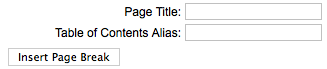
Page Break. This button allows you to insert a page break inside an Article. A page break allows for page navigation when the article is displayed on a layout. This is useful for long articles. When this button is pressed, a popup window is displayed as shown below:
Page Title. Enter the title to display for the new page (for example, 'Page 2').
Table of Contents Alias. Optional field to display in the table of contents for this page. In a multi-page article, Joomla! displays a 'table of contents' for the page that allows the user to select any page. If this field is blank, the Page Title will be used. If you want a different title in the table of contents, enter it here.
Insert Page Break. Click this button to insert the page break with the entered fields. The page break will display as a gray dashed line across the Article. Note that a page break cannot be edited. If you need to change a field in the page break, click on the Article just past the page break, press Backspace until the page break is deleted, then insert a new page break with the desired information.