Using the Github UI to Make Pull Requests: Difference between revisions
From Joomla! Documentation
Dextercowley (talk | contribs) m fix numbering |
Dextercowley (talk | contribs) fix name of last image |
||
| Line 8: | Line 8: | ||
# Fill in any additional information in the pull request including a reference to the joomlacode issue.[[File:easygithub7.png|frame|none]] | # Fill in any additional information in the pull request including a reference to the joomlacode issue.[[File:easygithub7.png|frame|none]] | ||
# Click Send pull request.[[File:easygithub8.png|frame|none]] | # Click Send pull request.[[File:easygithub8.png|frame|none]] | ||
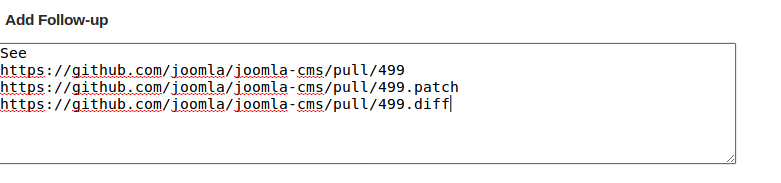
# Make a note in the joomlacode issue with any a link to the pull request.[[File: | # Make a note in the joomlacode issue with any a link to the pull request.[[File:easygithub9.png|frame|none]] | ||
[[Category: Bug Squad]] [[Category: Development]] | [[Category: Bug Squad]] [[Category: Development]] | ||
Revision as of 00:26, 15 October 2012
Github has a simple web interface that makes it very easy to propose a simple change to code. You do not need to install any software or do anything beside register for a git hub account.
- Identify a change you want to make.

- Find the file you want to modify on Github

- Click Edit to open the file

- Make your change

- Scroll down and click the Propose file change button (add a note if you want).

- Fill in any additional information in the pull request including a reference to the joomlacode issue.

- Click Send pull request.

- Make a note in the joomlacode issue with any a link to the pull request.