Joomla CodeSniffer: Difference between revisions
From Joomla! Documentation
m Minor spelling and punctuation corrections. |
|||
| Line 1: | Line 1: | ||
== A Nose For Joomla == | == A Nose For Joomla == | ||
This is a custom coding standard for the PHP CodeSniffer that attempts to codify and enforce the Joomla coding standards. This article covers how to set the automatic code style checker. It consists of three steps: | |||
This is a custom coding standard for the PHP CodeSniffer that attempts to codify and enforce the Joomla coding standards. This article covers how to set the automatic code style checker. It | # Install PHP CodeSniffer (phpcs). | ||
# Install PHP CodeSniffer (phpcs) | # Clone the Joomla Code Style (for use with for phpcs). | ||
# Clone Joomla Code Style (for use with for phpcs) | # Configure your IDE to work with PHP CodeSniffer and Joomla Code Style. | ||
# Configure your IDE to work with PHP CodeSniffer | |||
[[File:CodeSnifferInAction.jpg|center|thumb|300px|PHP Code Sniffer in action]] | [[File:CodeSnifferInAction.jpg|center|thumb|300px|PHP Code Sniffer in action]] | ||
==Why?== | ==Why?== | ||
- Coherent and consistent coding practice makes the files look more professional. Conflicting styles in the same project (or worse, the same file) not only look sloppy, they encourage further sloppiness. | |||
- Coherent and | |||
- When all code complies with the same standard, bad code is easier for everyone to spot. | - When all code complies with the same standard, bad code is easier for everyone to spot. | ||
- It makes it easier for someone new to a particular file in the project to find and fix errors | - It makes it easier for someone new to a particular file in the project to find and fix errors or extend functionality. | ||
- If there is no consistent standard maintained, | - If there is no consistent standard maintained, sometimes developers will reformat the code to suit themselves. This causes a wide range of changes in the code repository. If there is a later problem, a significant change could be lost in the chaff produced by a diff. | ||
==1. Installation of PHP Code Sniffer (phpcs)== | ==1. Installation of PHP Code Sniffer (phpcs)== | ||
===Composer (recommended)=== | ===Composer (recommended)=== | ||
PHP Code Sniffer is available via Composer. It can be installed system-wide with the following command: | PHP Code Sniffer is available via Composer. It can be installed system-wide with the following command: | ||
| Line 37: | Line 34: | ||
===PEAR=== | ===PEAR=== | ||
First | First you have to install the [http://pear.php.net/package/PHP_CodeSniffer/ PHP CodeSniffer]. This set of files is intended to work with phpcs version 1.4, so behavior with any other version is undefined. One way to do this is to start the console (cmd.exe in windows environments) and type: | ||
<code>pear install PHP_CodeSniffer</code> | <code>pear install PHP_CodeSniffer</code> | ||
| Line 45: | Line 42: | ||
<code>pear install PHP_CodeSniffer-1.5.x</code> (specify a number for x, in June 2016 was 1.5.6) | <code>pear install PHP_CodeSniffer-1.5.x</code> (specify a number for x, in June 2016 was 1.5.6) | ||
'''Important note:''' currently the latest PHPcs | '''Important note:''' currently the latest PHPcs is the 2.x series. But they are under development so '''Joomla Sniffers are not yet compatible with this 2.x version'''. PEAR gives you the option to install it by default but since Joomla sniffers will not work, always install PHPCS 1.5. version not 2.0. | ||
PEAR will handle the whole installation by itself. | |||
'''A note for windows users:''' If you are using XAMPP, while installing the PHPCS make sure in cmd.exe the path is set to <path-to-xampp>xampp/php. After that use codeː <code>pear install PHP_CodeSniffer-1.5.x</code> to install PHPCS. | '''A note for windows users:''' If you are using XAMPP, while installing the PHPCS make sure in cmd.exe the path is set to <path-to-xampp>xampp/php. After that use codeː <code>pear install PHP_CodeSniffer-1.5.x</code> to install PHPCS. | ||
| Line 62: | Line 59: | ||
4. <code>pear config-set test_dir <PATH-TO-XAMPP>\xampp\php\pear</code><br /> | 4. <code>pear config-set test_dir <PATH-TO-XAMPP>\xampp\php\pear</code><br /> | ||
5. <code>pear config-set www_dir <PATH-TO-XAMPP>\xampp\php\pear </code><br /> | 5. <code>pear config-set www_dir <PATH-TO-XAMPP>\xampp\php\pear </code><br /> | ||
Then download and unzip the [https://github.com/joomla/coding-standards Joomla! CodeSniffer] and copy the contents of it into /path/to/PHP_CodeSniffer/Standards/Joomla. | Then download and unzip the [https://github.com/joomla/coding-standards Joomla! CodeSniffer] and copy the contents of it into /path/to/PHP_CodeSniffer/Standards/Joomla. | ||
| Line 74: | Line 69: | ||
<code>pear config-get php_dir</code> | <code>pear config-get php_dir</code> | ||
to find out where the PEAR directory is on your system | to find out where the PEAR directory is on your system. Then add "/PHP/PHP_CodeSniffer/Standards" to it. | ||
==2. Clone Joomla Codestyle== | ==2. Clone Joomla Codestyle== | ||
In order to have PHP Code Sniffer (phpcs) sniffing your Joomla projects for the right code style, you | In order to have PHP Code Sniffer (phpcs) sniffing your Joomla projects for the right code style, you have to clone the Joomla Codestyle '''into the /CodeSniffer/Standards/''' folder of Code Sniffer. That folder already has other folders for styles like PSR1, PSR2, Squiz & Zend. | ||
The location of this folder depends on both your operating system as well as your | The location of this folder depends on both your operating system as well as your LAMP/WAMP/MAMP/XAMP/AMP stack. Some popular locations are: | ||
'''Mac''' | '''Mac''' | ||
| Line 95: | Line 90: | ||
If you can't find it in any of the above folders, note that the folder you are looking for ends with '''\CodeSniffer\Standards\''' | If you can't find it in any of the above folders, note that the folder you are looking for ends with '''\CodeSniffer\Standards\''' | ||
On Linux, | On Linux, go to the Standards folder of CodeSniffer and git clone from https://github.com/joomla/coding-standards: | ||
$ cd ~/.composer/vendor/squizlabs/php_codesniffer/CodeSniffer/Standards/ | $ cd ~/.composer/vendor/squizlabs/php_codesniffer/CodeSniffer/Standards/ | ||
or (for example on OpenSuse) | or (for example on OpenSuse) | ||
| Line 105: | Line 100: | ||
== Usage == | == Usage == | ||
You invoke the custom standard by | You invoke the custom standard by | ||
<code>phpcs --standard=Joomla file/to/sniff</code> | <code>phpcs --standard=Joomla file/to/sniff</code> | ||
To test a platform file using the provided platform coding standards use | To test a platform file using the provided platform coding standards, use | ||
<code>phpcs --standard=build/phpcs/Joomla path/to/file/or/folder</code> | <code>phpcs --standard=build/phpcs/Joomla path/to/file/or/folder</code> | ||
| Line 116: | Line 110: | ||
Further documentation on the use of phpcs can be found at: [http://pear.php.net/package/PHP_CodeSniffer/docs] | Further documentation on the use of phpcs can be found at: [http://pear.php.net/package/PHP_CodeSniffer/docs] | ||
==3. IDE | ==3. IDE Integration== | ||
Everybody loves the console. It is, with no doubt, the most effective way to do whatever you need to do. Sometimes even Linux gurus need a little bit of comfort. | |||
Fortunately there is a | Fortunately there is a plug-in available for PhpStorm, Eclipse and Netbeans that integrates the CodeSniffer into your favourite IDE, so any coding standard violations are shown like "normal" errors. | ||
=== PhpStorm === | === PhpStorm === | ||
Code Sniffer is supported out of the box in PhpStorm. Go to Settings and under Editor -> Inspections you will see the list of sniffers you have installed. | |||
==== Set Path to Code Sniffer ==== | |||
==== Set | |||
# Open Settings (CTRL-ALT-S / CMD-,) | # Open Settings (CTRL-ALT-S / CMD-,) | ||
# Go to Languages & Frameworks | # Go to Languages & Frameworks | ||
| Line 138: | Line 130: | ||
# Click OK | # Click OK | ||
===== Activating the Joomla Code | ===== Activating the Joomla Code Style ===== | ||
# Open Settings (CTRL-ALT-S / CMD-,) | # Open Settings (CTRL-ALT-S / CMD-,) | ||
# Go to Editor | # Go to Editor | ||
# Click on Inspections | # Click on Inspections | ||
# In the list go to PHP | # In the list, go to PHP | ||
# Click on PHP Code Sniffer Validation | # Click on PHP Code Sniffer Validation | ||
# Click on the | # Click on the check box behind it to activate it | ||
# Click the Reload button (2 arrows) to force a reload of rules from disk | # Click the Reload button (2 arrows) to force a reload of rules from disk | ||
# Joomla should be | # Joomla should now be available in the list. See following image: | ||
<gallery> | <gallery> | ||
File:PhpStorm8CodeSniffer.png|PHPStorm CodeSniffer | File:PhpStorm8CodeSniffer.png|PHPStorm CodeSniffer | ||
| Line 159: | Line 151: | ||
===== Using PHP PSR-1 and PSR-2 Sniff ===== | ===== Using PHP PSR-1 and PSR-2 Sniff ===== | ||
A CodeSniffer sniff to check against the PSR-x Coding Standard can be used as well. In that case you can select a different standard than Joomla. | A CodeSniffer sniff to check against the PSR-x Coding Standard can be used as well. In that case you can select a different standard than Joomla. | ||
===== Using Joomla Code style ===== | ===== Using Joomla Code style ===== | ||
It's nice to be able to check that the standards are respected. It's even nicer if PhpStorm helps you format properly too as you are coding. | |||
It's nice to be able to check that the standards are respected | |||
To use the Joomla code style in PhpStorm | To use the Joomla code style in PhpStorm | ||
# Open Settings (CTRL-ALT-S / CMD-,) | # Open Settings (CTRL-ALT-S / CMD-,) | ||
| Line 171: | Line 161: | ||
# Select Joomla from the Scheme select box | # Select Joomla from the Scheme select box | ||
==== PhpStorm / Alternative | ==== PhpStorm / Alternative Method ==== | ||
'''NOTE''': This method is '''outdated''', but it might be useful if you are looking for a different integration. It also demonstrates the use of external tools in PhpStorm - so it ''shouldn't be deleted''. | '''NOTE''': This method is '''outdated''', but it might be useful if you are looking for a different integration. It also demonstrates the use of external tools in PhpStorm - so it ''shouldn't be deleted''. | ||
| Line 178: | Line 168: | ||
* Click on "Settings" and search for "External tools" | * Click on "Settings" and search for "External tools" | ||
* Click "Add..." | * Click "Add..." | ||
* Choose a " | * Choose a "Name", "Group" and "Description". | ||
* Click "Output Filters" | * Click "Output Filters" | ||
** Click "Add...", Choose a name and enter under "Regular expression to match output" the value: <tt>$FILE_PATH$:$LINE$:$COLUMN$</tt> | ** Click "Add...", Choose a name and enter under "Regular expression to match output" the value: <tt>$FILE_PATH$:$LINE$:$COLUMN$</tt> | ||
* "Program": Search for the phpcs executable on your system. You have to set the path to the ''phpcs.bat'' from the installed PHP_CodeSniffer PEAR package | * "Program": Search for the phpcs executable on your system. You have to set the path to the ''phpcs.bat'' from the installed PHP_CodeSniffer PEAR package | ||
** | ** For Unix based systems, the path is something like /usr/bin/phpcs | ||
** | ** In XAMPP (windows), you can find the file in the PHP root folder (e.g. C:\xampp\php\phpcs.bat) | ||
* "Parameters": | * "Parameters": | ||
** <tt>--standard=<path/to/joomla-platform>/build/phpcs/Joomla</tt> The path to the Joomla! coding standards. | ** <tt>--standard=<path/to/joomla-platform>/build/phpcs/Joomla</tt> The path to the Joomla! coding standards. | ||
** <tt>--report=emacs</tt> The will generate a simple list containing links to the error files | ** <tt>--report=emacs</tt> The will generate a simple list containing links to the error files | ||
** | ** Optionally you may want to specify <tt>-p</tt> for "progress" or <tt>-n</tt> for "errors only". | ||
** The last parameter has to be <tt>$FilePath$</tt> specifying the file or folder you want to sniff. | ** The last parameter has to be <tt>$FilePath$</tt> specifying the file or folder you want to sniff. | ||
| Line 193: | Line 183: | ||
<pre>-np --standard=/home/elkuku/libs/joomla/build/phpcs/Joomla --report=emacs $FilePath$</pre> | <pre>-np --standard=/home/elkuku/libs/joomla/build/phpcs/Joomla --report=emacs $FilePath$</pre> | ||
You may now right click any file or folder and choose the sniffer from the context menu or add a new | You may now right click any file or folder and choose the sniffer from the context menu or add a new tool bar button with a nice Joomla! logo [[File:icon-16-joomla.png]]. | ||
=== Netbeans === | === Netbeans === | ||
Netbeans has the sniffer functionality integrated into the core system. | |||
# Start your Netbeans IDE | |||
# Start your | |||
# Open Tools => Options => PHP => Code Analysis => Code Sniffer | # Open Tools => Options => PHP => Code Analysis => Code Sniffer | ||
# You have to set the path to | # You have to set the path to ''phpcs.bat'' from the installed PHP_CodeSniffer PEAR package | ||
#* | #* For Unix based systems the path is something like /usr/bin/phpcs | ||
#* | #* In XAMPP (windows) you can find the file in the PHP root folder (e.g. C:\xampp\php\phpcs.bat) | ||
# As "Default Standard" choose "Joomla" to use the Joomla! standard | # As "Default Standard," choose "Joomla" to use the Joomla! standard | ||
# | # Now you can click ''OK'' to start sniffing | ||
# Open from the top menu Source => Inspect... | # Open from the top menu Source => Inspect... | ||
# Enjoy | # Enjoy | ||
| Line 211: | Line 200: | ||
=== Eclipse === | === Eclipse === | ||
[[Image:eclipse_pti.png|left|thumb|200px|1) Eclipse PTI]] | [[Image:eclipse_pti.png|left|thumb|200px|1) Eclipse PTI]] | ||
<div style="clear: both"></div> | <div style="clear: both"></div> | ||
Installation is a breeze and follows the usual pattern: | Installation is a breeze and follows the usual pattern: | ||
# <tt>Help => Install | # <tt>Help => Install New Software...</tt> | ||
# <tt>Work with:</tt> Fill in one of the update site URLs found here: http://www.phpsrc.org/eclipse/pti/ | # <tt>Work with:</tt> Fill in one of the update site URLs found here: http://www.phpsrc.org/eclipse/pti/ | ||
# Select the desired tools | # Select the desired tools | ||
| Line 223: | Line 211: | ||
You are now able to sniff for code violations against common standards like PEAR or Zend etc. | You are now able to sniff for code violations against common standards like PEAR or Zend etc. | ||
To sniff against your own standards, | To sniff against your own standards, specify their location and activate them (see screen shot 2) | ||
# <tt>Window => Preferences</tt> | # <tt>Window => Preferences</tt> | ||
# <tt>PHP Tools => PHP CodeSniffer</tt> | # <tt>PHP Tools => PHP CodeSniffer</tt> | ||
Happy sniffing | Happy sniffing. | ||
==== PHP Tools Compatibility Issue ==== | |||
PHP Tools does not directly support PHP_CodeSniffer-1.5.x. It reports this error: | PHP Tools does not directly support PHP_CodeSniffer-1.5.x. It reports this error: | ||
<tt>PHP Fatal error: | <tt>PHP Fatal error: Uncaught exception 'PHP_CodeSniffer_Exception' with message 'Class PHP_CodeSniffer_CommentParser_ClassCommentParser not found' in /usr/share/php5/PEAR/PHP/CodeSniffer/Standards/Joomla/Sniffs/Commenting/FileCommentSniff.php:18</tt> | ||
It comes with a pre-packaged CodeSniffer version located in eclipse/plugins/org.phpsrc.eclipse.pti.library.pear_.../php/library/PEAR/PHP. To fix the issue, | It comes with a pre-packaged CodeSniffer version located in eclipse/plugins/org.phpsrc.eclipse.pti.library.pear_.../php/library/PEAR/PHP. To fix the issue, just remove the pre-packaged CodeSniffer version and link the local version. For example, /usr/share/php/PHP. | ||
<tt>ln -s /usr/share/php/PHP /home/.../eclipse/plugins/org.phpsrc.eclipse.pti.library.pear_.../php/library/PEAR/PHP</tt> | <tt>ln -s /usr/share/php/PHP /home/.../eclipse/plugins/org.phpsrc.eclipse.pti.library.pear_.../php/library/PEAR/PHP</tt> | ||
| Line 255: | Line 242: | ||
* Select the second field, name it as you wish and enter code <code>phpcs --standard=Joomla "%f" | sed -e 's/^/%f |/' | egrep 'WARNING|ERROR'</code> | * Select the second field, name it as you wish and enter code <code>phpcs --standard=Joomla "%f" | sed -e 's/^/%f |/' | egrep 'WARNING|ERROR'</code> | ||
* Enter '''Error regular expression''' <code>(.+) [|]\s+([0-9]+)</code> and press ok [http://view.xscreenshot.com/ef00820cf7c017ce659c8e9f0b02d3ae Screenshot] | * Enter '''Error regular expression''' <code>(.+) [|]\s+([0-9]+)</code> and press ok [http://view.xscreenshot.com/ef00820cf7c017ce659c8e9f0b02d3ae Screenshot] | ||
* Now press F9 to see errors | * Now press F9 to see the errors found [http://view.xscreenshot.com/8704b9fd1bda3f841364a0ffa28a54ae Screenshot] | ||
=== References === | === References === | ||
Revision as of 22:24, 18 October 2016
A Nose For Joomla
This is a custom coding standard for the PHP CodeSniffer that attempts to codify and enforce the Joomla coding standards. This article covers how to set the automatic code style checker. It consists of three steps:
- Install PHP CodeSniffer (phpcs).
- Clone the Joomla Code Style (for use with for phpcs).
- Configure your IDE to work with PHP CodeSniffer and Joomla Code Style.

Why?
- Coherent and consistent coding practice makes the files look more professional. Conflicting styles in the same project (or worse, the same file) not only look sloppy, they encourage further sloppiness.
- When all code complies with the same standard, bad code is easier for everyone to spot.
- It makes it easier for someone new to a particular file in the project to find and fix errors or extend functionality.
- If there is no consistent standard maintained, sometimes developers will reformat the code to suit themselves. This causes a wide range of changes in the code repository. If there is a later problem, a significant change could be lost in the chaff produced by a diff.
1. Installation of PHP Code Sniffer (phpcs)
Composer (recommended)
PHP Code Sniffer is available via Composer. It can be installed system-wide with the following command:
composer global require 'squizlabs/php_codesniffer=1.*'
On Linux PHP Code Sniffer (phpcs) will be installed under your user folder:
- Symbolic Link: ~/.composer/vendor/bin/phpcs
- The file: ~/.composer/vendor/squizlabs/php_codesniffer/scripts/phpcs
or (for example OpenSuse)
- Symbolic Link: ~/.config/composer/vendor/bin/phpcs
- The file: ~/.config/composer/vendor/squizlabs/php_codesniffer/scripts/phpcs
On Windows PHP Code Sniffer (phpcs) will be installed under your user folder:
- Symbolic Link: c:\Users\Username\AppData\Roaming\Composer\vendor\bin\phpcs
- The file: c:\Users\Username\AppData\Roaming\Composer\vendor\squizlabs\php_codesniffer\scripts\phpcs
PEAR
First you have to install the PHP CodeSniffer. This set of files is intended to work with phpcs version 1.4, so behavior with any other version is undefined. One way to do this is to start the console (cmd.exe in windows environments) and type:
pear install PHP_CodeSniffer
To specify a specific version of the PHP CodeSniffer, type:
pear install PHP_CodeSniffer-1.5.x (specify a number for x, in June 2016 was 1.5.6)
Important note: currently the latest PHPcs is the 2.x series. But they are under development so Joomla Sniffers are not yet compatible with this 2.x version. PEAR gives you the option to install it by default but since Joomla sniffers will not work, always install PHPCS 1.5. version not 2.0.
PEAR will handle the whole installation by itself.
A note for windows users: If you are using XAMPP, while installing the PHPCS make sure in cmd.exe the path is set to <path-to-xampp>xampp/php. After that use codeː pear install PHP_CodeSniffer-1.5.x to install PHPCS.
Sometimes while running the command pear install PHP_CodeSniffer-1.5.x in cmd.exe user may get these 2 error like:
1. C:\xampp\php>pear install PHP_CodeSniffer-1.5.6 No releases available for package "pear.php.net/PHP_CodeSniffer"install failed
Just clear the cache using the command: pear clear-cache
After that you are good to go.
2. ERROR: failed to mkdir C:\php\pear\tests\PHP_CodeSniffer\CodeSniffer\Core\File
This error arises because config values set for different pear related directories are wrong.
Use the following command one by oneː
1. pear config-set doc_dir <PATH-TO-XAMPP>\xampp\php\pear(e.g.pear config-set doc_dir C:\xampp\php\pear)
2. pear config-set cfg_dir <PATH-TO-XAMPP>\xampp\php\pear
3. pear config-set data_dir <PATH-TO-XAMPP>\xampp\php\pear
4. pear config-set test_dir <PATH-TO-XAMPP>\xampp\php\pear
5. pear config-set www_dir <PATH-TO-XAMPP>\xampp\php\pear
Then download and unzip the Joomla! CodeSniffer and copy the contents of it into /path/to/PHP_CodeSniffer/Standards/Joomla.
In Unix systems this path is usually /usr/lib/php/PHP/PHP_CodeSniffer/Standards/Joomla but this varies from system to system. In Xubuntu 12.04, the path is /usr/share/php/PHP/CodeSniffer/Standards/Joomla. Windows based system with XAMPP have the following path: PATH_TO_XAMMP\php\PEAR\PHP\CodeSniffer\Standards (for example: C:\xampp\php\PEAR\PHP\CodeSniffer\Standards)
Use
pear config-get php_dir
to find out where the PEAR directory is on your system. Then add "/PHP/PHP_CodeSniffer/Standards" to it.
2. Clone Joomla Codestyle
In order to have PHP Code Sniffer (phpcs) sniffing your Joomla projects for the right code style, you have to clone the Joomla Codestyle into the /CodeSniffer/Standards/ folder of Code Sniffer. That folder already has other folders for styles like PSR1, PSR2, Squiz & Zend.
The location of this folder depends on both your operating system as well as your LAMP/WAMP/MAMP/XAMP/AMP stack. Some popular locations are:
Mac
/Applications/MAMP/bin/php/php7.0.0/lib/php/PHP/CodeSniffer/Standards/
This is for PHP 7.0.0 but this can be another PHP version folder as well.
Linux
~/.composer/vendor/squizlabs/php_codesniffer/CodeSniffer/Standards/
~/.config/composer/vendor/squizlabs/php_codesniffer/CodeSniffer/Standards
Windows
c:\Users\Username\AppData\Roaming\Composer\vendor\squizlabs\php_codesniffer\CodeSniffer\Standards\
This is using Composer on Windows.
If you can't find it in any of the above folders, note that the folder you are looking for ends with \CodeSniffer\Standards\
On Linux, go to the Standards folder of CodeSniffer and git clone from https://github.com/joomla/coding-standards:
$ cd ~/.composer/vendor/squizlabs/php_codesniffer/CodeSniffer/Standards/
or (for example on OpenSuse)
$ cd ~/.config/composer/vendor/squizlabs/php_codesniffer/CodeSniffer/Standards/
and then
$ git clone https://github.com/joomla/coding-standards.git Joomla
You'll end up with a folder like ~/.composer/vendor/squizlabs/php_codesniffer/CodeSniffer/Standards/Joomla/
Usage
You invoke the custom standard by
phpcs --standard=Joomla file/to/sniff
To test a platform file using the provided platform coding standards, use
phpcs --standard=build/phpcs/Joomla path/to/file/or/folder
Further documentation on the use of phpcs can be found at: [1]
3. IDE Integration
Everybody loves the console. It is, with no doubt, the most effective way to do whatever you need to do. Sometimes even Linux gurus need a little bit of comfort.
Fortunately there is a plug-in available for PhpStorm, Eclipse and Netbeans that integrates the CodeSniffer into your favourite IDE, so any coding standard violations are shown like "normal" errors.
PhpStorm
Code Sniffer is supported out of the box in PhpStorm. Go to Settings and under Editor -> Inspections you will see the list of sniffers you have installed.
Set Path to Code Sniffer
- Open Settings (CTRL-ALT-S / CMD-,)
- Go to Languages & Frameworks
- Click on PHP
- Click on Code Sniffer
- The configuration is set to Local by default
- Click on the 3 dots behind it to open the configuration screen
- The first option is the PHP Code Sniffer (phpcs) path
- Click on the 3 dots behind the path to select the location of the phpcs file. See above on where phpcs may be installed on your site
- Click on Validate to make sure the path is correct and phpcs is working
- Click OK
Activating the Joomla Code Style
- Open Settings (CTRL-ALT-S / CMD-,)
- Go to Editor
- Click on Inspections
- In the list, go to PHP
- Click on PHP Code Sniffer Validation
- Click on the check box behind it to activate it
- Click the Reload button (2 arrows) to force a reload of rules from disk
- Joomla should now be available in the list. See following image:
-
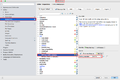 PHPStorm CodeSniffer

9. Click OK
PHP PSR-0, PSR-1 and PSR-2
- https://github.com/php-fig/fig-standards/blob/master/accepted/PSR-0.md
- https://github.com/pmjones/fig-standards/blob/psr-1-style-guide/proposed/PSR-1-basic.md
- https://github.com/pmjones/fig-standards/blob/psr-1-style-guide/proposed/PSR-2-advanced.md
Using PHP PSR-1 and PSR-2 Sniff
A CodeSniffer sniff to check against the PSR-x Coding Standard can be used as well. In that case you can select a different standard than Joomla.
Using Joomla Code style
It's nice to be able to check that the standards are respected. It's even nicer if PhpStorm helps you format properly too as you are coding. To use the Joomla code style in PhpStorm
- Open Settings (CTRL-ALT-S / CMD-,)
- Go to Editor
- Click on Code Style
- Select Joomla from the Scheme select box
PhpStorm / Alternative Method
NOTE: This method is outdated, but it might be useful if you are looking for a different integration. It also demonstrates the use of external tools in PhpStorm - so it shouldn't be deleted.
The Code Sniffer can also be integrated easily as an external tool. PhpStorm will display the output in the console, including click-able links containing line and column numbers to the files that contain errors.
- Click on "Settings" and search for "External tools"
- Click "Add..."
- Choose a "Name", "Group" and "Description".
- Click "Output Filters"
- Click "Add...", Choose a name and enter under "Regular expression to match output" the value: $FILE_PATH$:$LINE$:$COLUMN$
- "Program": Search for the phpcs executable on your system. You have to set the path to the phpcs.bat from the installed PHP_CodeSniffer PEAR package
- For Unix based systems, the path is something like /usr/bin/phpcs
- In XAMPP (windows), you can find the file in the PHP root folder (e.g. C:\xampp\php\phpcs.bat)
- "Parameters":
- --standard=<path/to/joomla-platform>/build/phpcs/Joomla The path to the Joomla! coding standards.
- --report=emacs The will generate a simple list containing links to the error files
- Optionally you may want to specify -p for "progress" or -n for "errors only".
- The last parameter has to be $FilePath$ specifying the file or folder you want to sniff.
A typical "Parameters" line on a Linux system might look like this:
-np --standard=/home/elkuku/libs/joomla/build/phpcs/Joomla --report=emacs $FilePath$
You may now right click any file or folder and choose the sniffer from the context menu or add a new tool bar button with a nice Joomla! logo  .
.
Netbeans
Netbeans has the sniffer functionality integrated into the core system.
- Start your Netbeans IDE
- Open Tools => Options => PHP => Code Analysis => Code Sniffer
- You have to set the path to phpcs.bat from the installed PHP_CodeSniffer PEAR package
- For Unix based systems the path is something like /usr/bin/phpcs
- In XAMPP (windows) you can find the file in the PHP root folder (e.g. C:\xampp\php\phpcs.bat)
- As "Default Standard," choose "Joomla" to use the Joomla! standard
- Now you can click OK to start sniffing
- Open from the top menu Source => Inspect...
- Enjoy
Eclipse

Installation is a breeze and follows the usual pattern:
- Help => Install New Software...
- Work with: Fill in one of the update site URLs found here: http://www.phpsrc.org/eclipse/pti/
- Select the desired tools
- Restart Eclipse.

You are now able to sniff for code violations against common standards like PEAR or Zend etc.
To sniff against your own standards, specify their location and activate them (see screen shot 2)
- Window => Preferences
- PHP Tools => PHP CodeSniffer
Happy sniffing.
PHP Tools Compatibility Issue
PHP Tools does not directly support PHP_CodeSniffer-1.5.x. It reports this error:
PHP Fatal error: Uncaught exception 'PHP_CodeSniffer_Exception' with message 'Class PHP_CodeSniffer_CommentParser_ClassCommentParser not found' in /usr/share/php5/PEAR/PHP/CodeSniffer/Standards/Joomla/Sniffs/Commenting/FileCommentSniff.php:18
It comes with a pre-packaged CodeSniffer version located in eclipse/plugins/org.phpsrc.eclipse.pti.library.pear_.../php/library/PEAR/PHP. To fix the issue, just remove the pre-packaged CodeSniffer version and link the local version. For example, /usr/share/php/PHP.
ln -s /usr/share/php/PHP /home/.../eclipse/plugins/org.phpsrc.eclipse.pti.library.pear_.../php/library/PEAR/PHP
In any case, you can also debug a PHP Tools issue, enabling the debug mode to show the internal commands in Eclipse console:
- Window => Preferences
- PHP Tools => PHP CodeSniffer
- Debug: print PHP output to console
Command example:
/usr/bin/php -c /tmp/zend_debug/session8314597725413224814.tmp -d asp_tags=off -d short_open_tag=on /home/.../eclipse/plugins/org.phpsrc.eclipse.pti.tools.codesniffer_1.3.0.R20111119000000/php/tools/phpcs.php --report=xml --standard=/home/.../Joomla /home/..../myphpfile.php
Geany
- Open a PHP file (otherwise the build menu is not accessible) Screenshot
- Select menu Build->Set build commands
- Select the second field, name it as you wish and enter code
phpcs --standard=Joomla "%f" | sed -e 's/^/%f |/' | egrep 'WARNING|ERROR' - Enter Error regular expression
(.+) [|]\s+([0-9]+)and press ok Screenshot - Now press F9 to see the errors found Screenshot
References
- http://www.phpsrc.org/ PTI - PHP tools integration for Eclipse
- http://sourceforge.net/projects/phpmdnb/ Netbeans plugin
- http://hakre.wordpress.com/2010/03/06/php-code-sniffer-eclipse-and-wordpress/ - Excellent article. Just change "Wordpress" for "Joomla!" ;)