Adaptive Images for Media Manager: Difference between revisions
From Joomla! Documentation
m Wiki markup |
m Marked for translation |
||
| Line 1: | Line 1: | ||
<noinclude><languages /></noinclude> | |||
{{Top portal heading|color=white-bkgd|text-color=#333|title= | {{Top portal heading|color=white-bkgd|text-color=#333|title= | ||
GSoC 2018 <br /> | GSoC 2018 <br /> | ||
Adaptative Image for New Media Manager <br />Documentation}} | <translate>Adaptative Image for New Media Manager <br />Documentation</translate>}} | ||
[[Image:Gsoc2016.png|75px|center|link=GSOC 2018]] | [[Image:Gsoc2016.png|75px|center|link=GSOC 2018]] | ||
<noinclude>{{Joomla version|version=4.x}}</noinclude> | <noinclude>{{Joomla version|version=4.x}}</noinclude> | ||
{{-}} | {{-}} | ||
<translate> | |||
== Introduction == | == Introduction == | ||
The main objective of this extension is to preserve the important message associated with the image, by providing the user a way to add the focus area for the image. Images are being made responsive with the help of this extension. This extension is supported by the media-action plugin and the content plugin. | </translate> | ||
<translate>The main objective of this extension is to preserve the important message associated with the image, by providing the user a way to add the focus area for the image. Images are being made responsive with the help of this extension. This extension is supported by the media-action plugin and the content plugin.</translate> | |||
<translate> | |||
==Features== | ==Features== | ||
* Provided a focus editor for taking in the focus information from the author, in a more intuitive manner. | </translate> | ||
* Auto-Cropping of the images according to the viewport of the client device. | * <translate>Provided a focus editor for taking in the focus information from the author, in a more intuitive manner.</translate> | ||
* The cropping is done around the focus area selected by the author. | * <translate>Auto-Cropping of the images according to the viewport of the client device.</translate> | ||
* Author can select particular widths for which the images need to be cropped. | * <translate>The cropping is done around the focus area selected by the author.</translate> | ||
* Author can select different focus for different devices. | * <translate>Author can select particular widths for which the images need to be cropped.</translate> | ||
* Author can also remove all the resized images and the previous set focus points for a particular image from the focus editor. | * <translate>Author can select different focus for different devices.</translate> | ||
* If an author deletes the original image from the media manager, its resized image and the focus points would be deleted too. | * <translate>Author can also remove all the resized images and the previous set focus points for a particular image from the focus editor.</translate> | ||
* <translate>If an author deletes the original image from the media manager, its resized image and the focus points would be deleted too.</translate> | |||
'''''Note: ''''' To Enable this Extention, Administrator has to enable two plugins from the plugin's extension manager: | <translate>'''''Note: ''''' To Enable this Extention, Administrator has to enable two plugins from the plugin's extension manager:</translate> | ||
# Media-Action: Smart Crop Plugin | <translate># Media-Action: Smart Crop Plugin | ||
# Content: Adaptive Image Plugin | # Content: Adaptive Image Plugin</translate> | ||
<translate> | |||
===Cropped Images=== | ===Cropped Images=== | ||
</translate> | |||
[[File:Original Image.png|center|Original image with focus area|800px]] | [[File:Original Image.png|center|Original image with focus area|800px]] | ||
[[File:Resized Images.png|center|Resized Images for focus area mentioned]] | [[File:Resized Images.png|center|Resized Images for focus area mentioned]] | ||
<translate> | |||
==How to set focus points for a particular image?== | ==How to set focus points for a particular image?== | ||
# Go to the Media Manager, locate the image you want to add focus points to.{{-}}[[File: NMM edit images-en.png|center|800px]] | </translate> | ||
# Edit that image, you would be redirected to the new window, go to Smart Crop tab.{{-}}[[File:Edit image-en.png|center|800px]] | # <translate>Go to the Media Manager, locate the image you want to add focus points to.</translate>{{-}}[[File: NMM edit images-<translate>en</translate>.png|center|800px]] | ||
# Now Select the focus area of the image, with the help of editor provided.{{-}}[[File: Smart Crop Tab-en.png | center|800px]] | # <translate>Edit that image, you would be redirected to the new window, go to Smart Crop tab.</translate>{{-}}[[File:Edit image-<translate>en</translate>.png|center|800px]] | ||
# After setting up the area, Save and Close the editor, you would be redirected back to the media manager.{{-}}[[File:Parameters-en.png|center|800px]] | # <translate>Now Select the focus area of the image, with the help of editor provided.</translate>{{-}}[[File: Smart Crop Tab-<translate>en</translate>.png | center|800px]] | ||
# Now just add that image normally to your article. ''Bash...!! Your image got responsive while preserving the important section of that image.'' | # <translate>After setting up the area, Save and Close the editor, you would be redirected back to the media manager.</translate>{{-}}[[File:Parameters-<translate>en</translate>.png|center|800px]] | ||
# <translate>Now just add that image normally to your article. ''Bash...!! Your image got responsive while preserving the important section of that image.''</translate> | |||
<translate> | |||
==Adding Multiple Focus== | ==Adding Multiple Focus== | ||
</translate> | |||
# <translate>Follow the basic step to set the initial focus points.</translate> | |||
# <translate>Now in the upper right corner of the plugin you will find a drop-down menu with different widths mentioned.</translate>{{-}}[[File:Different Focus-<translate>en</translate>.png|center|800px]] | |||
# <translate>Select a width and then select its focus point in the focus editor.</translate> | |||
# <translate>Save and close the tab.</translate> | |||
<translate> | |||
==Adding custom widths== | ==Adding custom widths== | ||
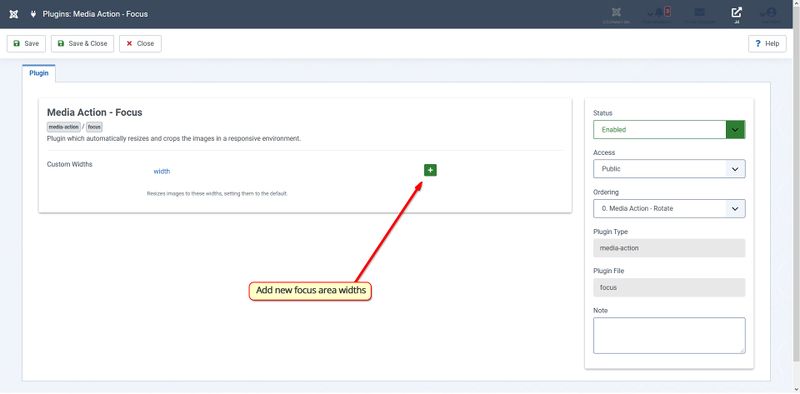
# Go to plugin's extension manager, look for '''Media-Action Smart Crop'''.{{-}} [[File:Plugin extension manager-en.png|center|800px]] | </translate> | ||
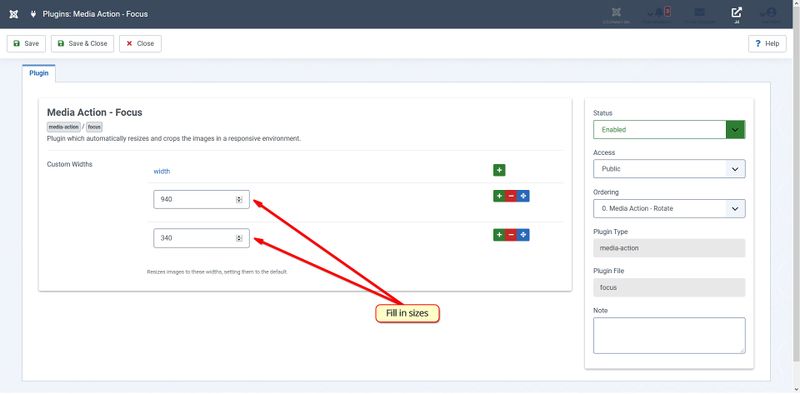
# Now add new widths over here, and save the plugin.{{-}}[[File:Add Widths-en.png|center|800px]]{{-}}[[File:Enter Widths-en.png|center|800px]] | # <translate>Go to plugin's extension manager, look for '''Media-Action Smart Crop'''.</translate>{{-}} [[File:Plugin extension manager-<translate>en</translate>.png|center|800px]] | ||
# You would be noticing those widths in the '''Smart Crop''' tab.{{-}}[[File: Custom widths-en.png|center|800px]] | # <translate>Now add new widths over here, and save the plugin.</translate>{{-}}[[File:Add Widths-en.png|center|800px]]{{-}}[[File:Enter Widths-<translate>en</translate>.png|center|800px]] | ||
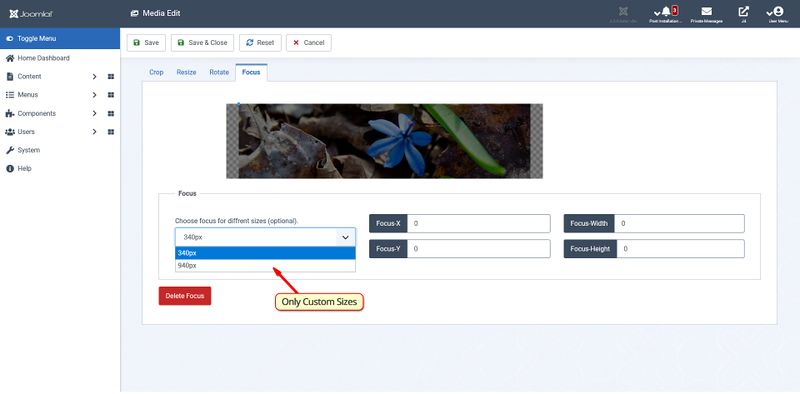
# <translate>You would be noticing those widths in the '''Smart Crop''' tab.</translate>{{-}}[[File: Custom widths-<translate>en</translate>.png|center|800px]] | |||
<translate> | |||
==Deleting the previous set focus point== | ==Deleting the previous set focus point== | ||
'''Note: ''' This will delete all the previously saved focus and resized images of the original image generated by the plugin. | </translate> | ||
# | <translate>'''Note: ''' This will delete all the previously saved focus and resized images of the original image generated by the plugin.</translate> | ||
# In the lower right of the | # <translate>Go to the '''Smart Crop tab''' in the '''Edit Image'''.</translate> | ||
# After deleting the previous focus reload the page or hit cancel to go back to media-manager | # <translate>In the lower right of the screen there is a delete focus button.</translate> | ||
[[File:Delete Focus Button.png|center|800px]] | # <translate>After deleting the previous focus reload the page or hit cancel to go back to media-manager</translate> | ||
[[File:Delete Focus Button-<translate>en</translate>.png|center|800px]] | |||
<translate> | |||
==Workflow== | ==Workflow== | ||
This Extension consists of two independent plugins. | </translate> | ||
<translate>This Extension consists of two independent plugins.</translate> | |||
<translate> | |||
===Smart Crop Plugin=== | ===Smart Crop Plugin=== | ||
This is a Media-Action plugin. It is providing the UI for managing the focus points. It takes in the focus points from the user and saves it into the file storage by sending an AJAX request to the controller <tt>AdaptiveImageController.php</tt>. Finally, when the author is satisfied with the focus he hit '''Save and Close''' which raises another AJAX request, this time new images are generated with an efficient algorithm and save them into the directory <tt>/media/focus</tt>. Nomenclature of resized images is <tt>(resize image width)_(base64 encoded full path of the image).</tt> | </translate> | ||
<translate>This is a Media-Action plugin. It is providing the UI for managing the focus points. It takes in the focus points from the user and saves it into the file storage by sending an AJAX request to the controller <tt>AdaptiveImageController.php</tt>. Finally, when the author is satisfied with the focus he hit '''Save and Close''' which raises another AJAX request, this time new images are generated with an efficient algorithm and save them into the directory <tt>/media/focus</tt>. Nomenclature of resized images is <tt>(resize image width)_(base64 encoded full path of the image).</tt></translate> | |||
<translate> | |||
===Adaptive Image Plugin=== | ===Adaptive Image Plugin=== | ||
This is a Content plugin. If the focus of a particular image is being set in the currently opened article then this plugin will add the <tt><picture></tt> element to that image and all the associated resized-images will be appended to it from <tt>/media/focus/</tt>. This plugin will also delete all the resized images if the original image is not found (or deleted). | </translate> | ||
<translate>This is a Content plugin. If the focus of a particular image is being set in the currently opened article then this plugin will add the <tt><picture></tt> element to that image and all the associated resized-images will be appended to it from <tt>/media/focus/</tt>. This plugin will also delete all the resized images if the original image is not found (or deleted).</translate> | |||
<translate> | |||
==Extending Extension== | ==Extending Extension== | ||
</translate> | |||
<translate> | |||
===Changing storage for focus points=== | ===Changing storage for focus points=== | ||
Currently, The focus area is being saved in JSON format in the file storage(<tt>JSONFocusStore</tt> Driver). This can be changed to any other storage by making a new driver class into <tt>Joomla\CMS\AdaptiveImage\</tt>.The driver class should implement <tt>Joomla\CMS\AdaptiveImage\FocusStoreInterface</tt> interface. | </translate> | ||
<tt>JSONFocusStore</tt> driver class is implementing <tt>Joomla\CMS\AdaptiveImage\FocusStoreInterface</tt>. <tt>FocusStoreInterface</tt> has following methods declared: | <translate>Currently, The focus area is being saved in JSON format in the file storage(<tt>JSONFocusStore</tt> Driver). This can be changed to any other storage by making a new driver class into <tt>Joomla\CMS\AdaptiveImage\</tt>.The driver class should implement <tt>Joomla\CMS\AdaptiveImage\FocusStoreInterface</tt> interface.</translate> | ||
<translate><tt>JSONFocusStore</tt> driver class is implementing <tt>Joomla\CMS\AdaptiveImage\FocusStoreInterface</tt>. <tt>FocusStoreInterface</tt> has following methods declared:</translate> | |||
1. <tt>setFocus($dataFocus, $width, $imgSrc)</tt> | 1. <tt>setFocus($dataFocus, $width, $imgSrc)</tt> | ||
: This method stores/updates the focus area into the storage. | : <translate>This method stores/updates the focus area into the storage.</translate> | ||
:* <tt>$dataFocus</tt> It has the dimensions of the focus area. It is an array with keys <tt>box-left</tt>, <tt>box-top</tt>, <tt>box-width</tt>, <tt>box-height</tt>. | :* <translate><tt>$dataFocus</tt> It has the dimensions of the focus area. It is an array with keys <tt>box-left</tt>, <tt>box-top</tt>, <tt>box-width</tt>, <tt>box-height</tt>.</translate> | ||
:* <tt>$width</tt> It is the size of image for which the focus area is being stored. | :* <translate><tt>$width</tt> It is the size of image for which the focus area is being stored.</translate> | ||
:* <tt>$imgSrc</tt> It is the full path of the image corresponding to the focus area. | :* <translate><tt>$imgSrc</tt> It is the full path of the image corresponding to the focus area.</translate> | ||
2. <tt>getFocus($imgSrc, $width)</tt> | 2. <tt>getFocus($imgSrc, $width)</tt> | ||
: This method returns the focus area of the image. It return all the focus area associated with the image | : <translate>This method returns the focus area of the image. It return all the focus area associated with the image</translate> | ||
:* <tt>$imgSrc</tt> It is the full path of the image corresponding to the focus area. | :* <translate><tt>$imgSrc</tt> It is the full path of the image corresponding to the focus area.</translate> | ||
:* <tt>$width(optional)</tt> If the user want to take in the value of focus area for particular width then, it may be mentioned. | :* <translate><tt>$width(optional)</tt> If the user want to take in the value of focus area for particular width then, it may be mentioned.</translate> | ||
3. <tt>deleteFocus($imgSrc)</tt> | 3. <tt>deleteFocus($imgSrc)</tt> | ||
: It deletes all the focus associated with the image. | : <translate>It deletes all the focus associated with the image.</translate> | ||
:* <tt>$imgSrc</tt> It is the full path of the image corresponding to the focus area. | :* <translate><tt>$imgSrc</tt> It is the full path of the image corresponding to the focus area.</translate> | ||
<noinclude> | <noinclude> | ||
[[Category:Google Summer of Code 2018]] | [[Category:Google Summer of Code 2018{{#translation:}}]] | ||
[[Category:Development]] | [[Category:Development{{#translation:}}]] | ||
[[Category:Joomla!_4.x]] | [[Category:Joomla!_4.x{{#translation:}}]] | ||
</noinclude> | </noinclude> | ||
Revision as of 11:31, 4 August 2018
Adaptative Image for New Media Manager
Documentation

Introduction
The main objective of this extension is to preserve the important message associated with the image, by providing the user a way to add the focus area for the image. Images are being made responsive with the help of this extension. This extension is supported by the media-action plugin and the content plugin.
Features
- Provided a focus editor for taking in the focus information from the author, in a more intuitive manner.
- Auto-Cropping of the images according to the viewport of the client device.
- The cropping is done around the focus area selected by the author.
- Author can select particular widths for which the images need to be cropped.
- Author can select different focus for different devices.
- Author can also remove all the resized images and the previous set focus points for a particular image from the focus editor.
- If an author deletes the original image from the media manager, its resized image and the focus points would be deleted too.
Note: To Enable this Extention, Administrator has to enable two plugins from the plugin's extension manager:
- Media-Action: Smart Crop Plugin
- Content: Adaptive Image Plugin
Cropped Images


How to set focus points for a particular image?
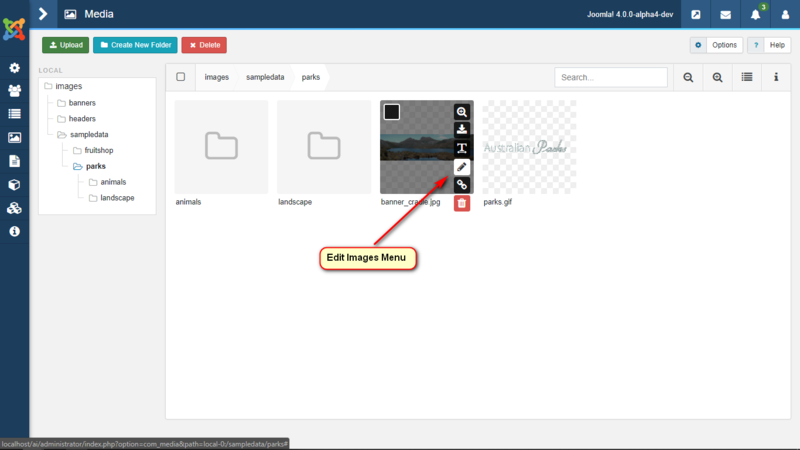
- Go to the Media Manager, locate the image you want to add focus points to.
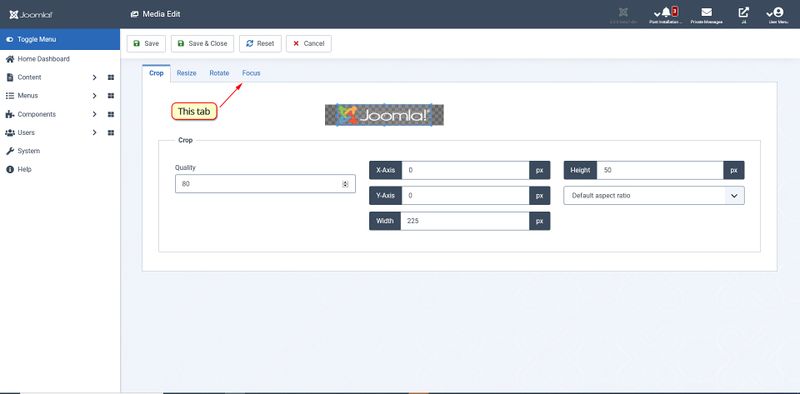
- Edit that image, you would be redirected to the new window, go to Smart Crop tab.
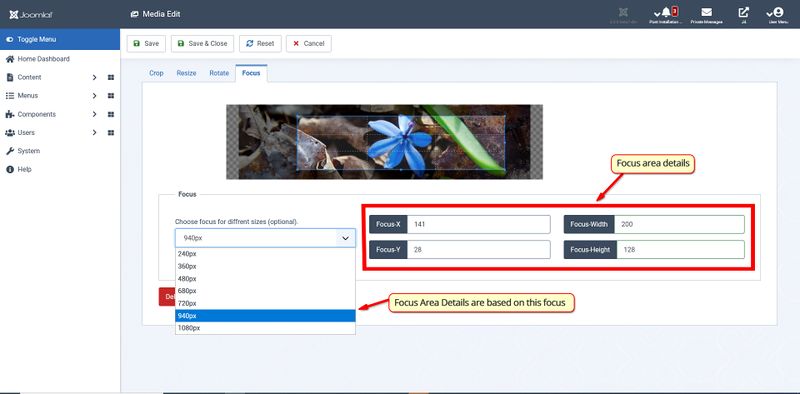
- Now Select the focus area of the image, with the help of editor provided.

- After setting up the area, Save and Close the editor, you would be redirected back to the media manager.
- Now just add that image normally to your article. Bash...!! Your image got responsive while preserving the important section of that image.


Adding Multiple Focus
- Follow the basic step to set the initial focus points.
- Now in the upper right corner of the plugin you will find a drop-down menu with different widths mentioned.
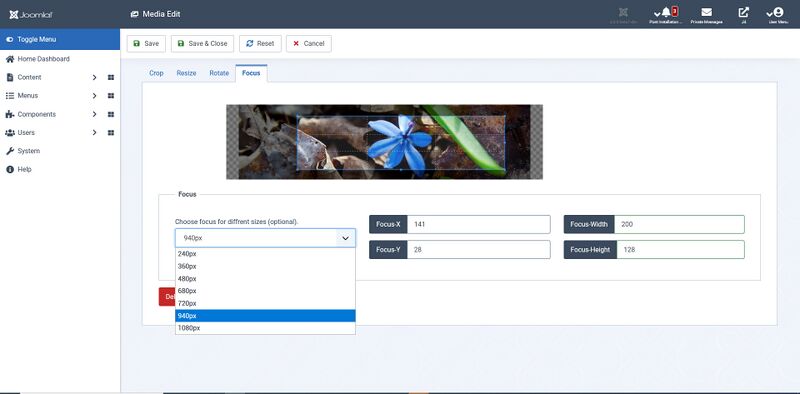
- Select a width and then select its focus point in the focus editor.
- Save and close the tab.

Adding custom widths
- Go to plugin's extension manager, look for Media-Action Smart Crop.

- Now add new widths over here, and save the plugin.
- You would be noticing those widths in the Smart Crop tab.


Deleting the previous set focus point
Note: This will delete all the previously saved focus and resized images of the original image generated by the plugin.
- Go to the Smart Crop tab in the Edit Image.
- In the lower right of the screen there is a delete focus button.
- After deleting the previous focus reload the page or hit cancel to go back to media-manager

Workflow
This Extension consists of two independent plugins.
Smart Crop Plugin
This is a Media-Action plugin. It is providing the UI for managing the focus points. It takes in the focus points from the user and saves it into the file storage by sending an AJAX request to the controller AdaptiveImageController.php. Finally, when the author is satisfied with the focus he hit Save and Close which raises another AJAX request, this time new images are generated with an efficient algorithm and save them into the directory /media/focus. Nomenclature of resized images is (resize image width)_(base64 encoded full path of the image).
Adaptive Image Plugin
This is a Content plugin. If the focus of a particular image is being set in the currently opened article then this plugin will add the <picture> element to that image and all the associated resized-images will be appended to it from /media/focus/. This plugin will also delete all the resized images if the original image is not found (or deleted).
Extending Extension
Changing storage for focus points
Currently, The focus area is being saved in JSON format in the file storage(JSONFocusStore Driver). This can be changed to any other storage by making a new driver class into Joomla\CMS\AdaptiveImage\.The driver class should implement Joomla\CMS\AdaptiveImage\FocusStoreInterface interface. JSONFocusStore driver class is implementing Joomla\CMS\AdaptiveImage\FocusStoreInterface. FocusStoreInterface has following methods declared:
1. setFocus($dataFocus, $width, $imgSrc)
- This method stores/updates the focus area into the storage.
- $dataFocus It has the dimensions of the focus area. It is an array with keys box-left, box-top, box-width, box-height.
- $width It is the size of image for which the focus area is being stored.
- $imgSrc It is the full path of the image corresponding to the focus area.
2. getFocus($imgSrc, $width)
- This method returns the focus area of the image. It return all the focus area associated with the image
- $imgSrc It is the full path of the image corresponding to the focus area.
- $width(optional) If the user want to take in the value of focus area for particular width then, it may be mentioned.
3. deleteFocus($imgSrc)
- It deletes all the focus associated with the image.
- $imgSrc It is the full path of the image corresponding to the focus area.